Docs navigation

Capture overview

Pick the right save method for each content type and see which sources support auto-save.

View Markdown on GitHub

SyncNos saves content to the browser local library first. No sync service is required.

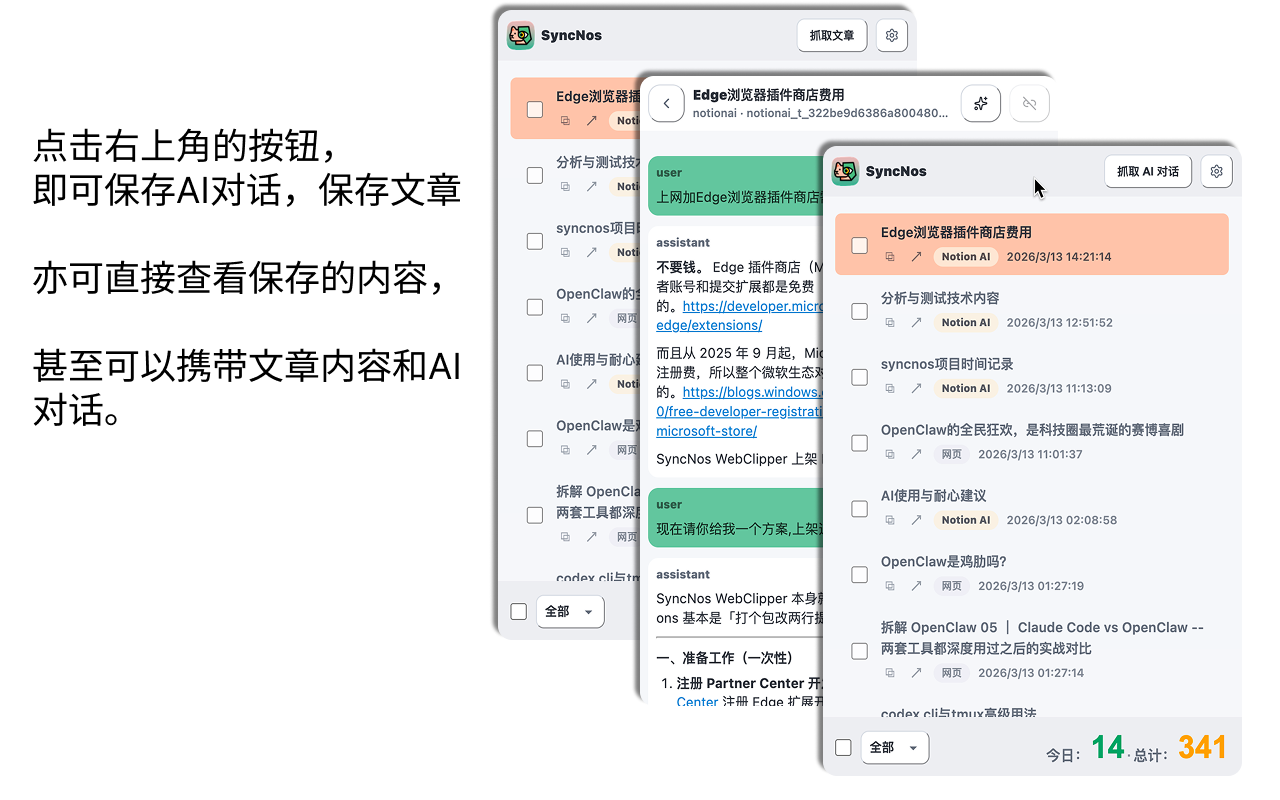
SyncNos popup

Choose a content type

  • AI conversations: ChatGPT, Gemini, Google AI Studio, DeepSeek, Kimi, Doubao, Yuanbao, Poe, Notion AI, and z.ai
  • Web articles: save readable article content and continue with highlights and comments
  • Videos: save YouTube / Bilibili subtitles and available video metadata

Save entry points

Supported pages expose a current-page capture action in the SyncNos popup or in-page UI. After saving, return to the local library and confirm the result.

Auto-save availability depends on the AI platform. Web articles and videos use manual capture.

Browser keyboard shortcuts

SyncNos provides three browser shortcut actions: Open SyncNos popup, Save current page, and Open/focus SyncNos app.

No shortcut keys are assigned by default. Assign them in your browser's extension keyboard-shortcut settings. In SyncNos, open Settings → Keyboard shortcuts to see the bindings your browser is currently using. When the browser allows it, Manage shortcuts opens the browser's shortcut manager; otherwise, follow the manual guidance shown in the card.

Save current page uses the same capture support as the popup. If the current page cannot be captured, the shortcut reports an error instead of bypassing the page support rules.

Images and text

AI conversations and web articles can cache content images locally. An image failure does not block the text from being saved.

To retry images for an existing item, choose Cache images from the detail More menu.